Claude Code Plan Mode: What It Does and When to Use It
 By Neo Zino - builder of ClockedCode3 min read
Plan Mode makes Claude Code propose and wait on a plan before it edits files. See how to enter it, what it catches, and when Superpowers is worth adding.
Made with DispatchSEO
On this page
Plan Mode makes Claude Code propose a concrete plan you approve before it writes a single line. You see which files it intends to touch, the approach it will take, and what it will leave alone — then you say go. This catches wrong turns early, not after a 200‑line diff.
TL;DR: Use Plan Mode whenever a task is bigger than a one‑liner. Approve the plan first; only then let Claude edit.
How to Enter Plan Mode (Shift+Tab or /plan)
You have two ways to start it:
- Press Shift+Tab while your cursor is in the chat box.
- Or type
/planand send.
Two ways to start Plan Mode
Press in an active session to ask for a plan first.
Type the command and send to draft a plan and pause.
Approve only when the steps, touched files, and out-of-scope items look right.
Claude will draft a plan and pause. Read it closely: it should list the files it will modify, a 1–2 sentence approach, and what it will avoid (unnecessary refactors, unrelated files).
When the plan looks right, click Approve. If it misses a detail, ask for an updated plan — not code yet.
What Plan Mode Catches That Ad‑Hoc Prompts Miss
Ad‑hoc “just do it” prompts hide decisions you later have to unwind. Plan Mode surfaces them first.
- File selection mistakes (touching the wrong module)
- Over‑engineering (creating helpers you do not need)
- Scope creep (refactoring code you never asked to change)
- Risky steps (deleting code or moving logic without a migration path)
What Plan Mode surfaces early
Review the plan, not a wrong diff
File selection mistakes
Touching the wrong module or too many files
Scope creep + over-engineering
Helpers or refactors you did not ask for
Risky steps
Deletes or moves with no migration path
A 10‑second plan review is cheaper than reading a wrong diff. If you often hit context limits mid‑session, pair this with understanding Auto‑Compact and your Context Window.
Plan Mode vs Superpowers: When Each One Is Enough
Plan Mode is built in and perfect for “make a clear change, carefully.” Superpowers (the community plugin) adds a deeper brainstorm‑plan‑execute loop when your task is fuzzy or multi‑path.
- Use Plan Mode when the task is well‑shaped, the files are known, and you want a quick safety net.
- Add Superpowers when you need alternatives explored first, or a longer loop with checkpoints.
- For messy, looping problems, practice Loop Engineering — craft the smallest testable step, then iterate.
Side‑by‑Side
| Scenario | Plan Mode | Superpowers |
|---|---|---|
| Small, well‑scoped change | ✅ Fast and safe | Overhead you do not need |
| Several viable approaches | Limited exploration | ✅ Brainstorms options first |
| Multi‑step orchestration | Single plan | ✅ Checkpointed loop |
| Guard against early edits | ✅ Approval required | ✅ Approval + stage gates |
A Simple Plan‑Approve‑Build Loop
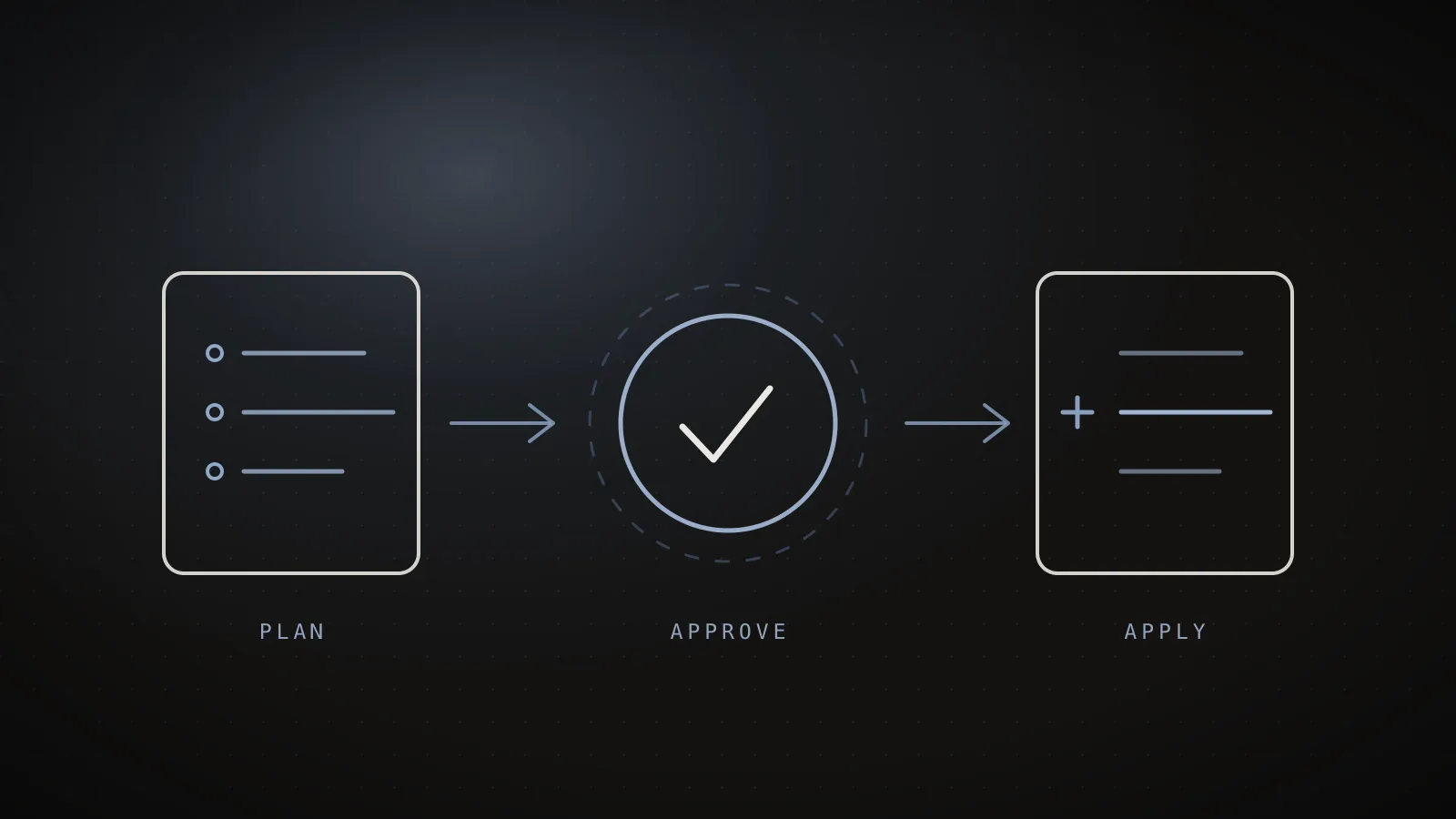
- Ask for a plan (or trigger Plan Mode).
- Correct the plan in plain English until it is right.
- Approve to apply. If the diff drifts, pause and revise the plan.
Plan → Approve → Apply
A fast, safe loop
Step 1
Ask for a plan
Trigger Plan Mode or type
/plan.Step 2
Correct the plan
Fix files, scope, and guardrails in plain English.
Step 3
Approve to apply
Pause if the diff drifts; revise the plan first.
This loop is faster than it feels. It also plays well with fresh sessions when the context gets tight.
FAQ
What is Plan Mode in Claude Code?
A guarded workflow where Claude researches and proposes a change plan you approve before it edits any files.
How do I turn on Plan Mode?
Press Shift+Tab in an active session or type /plan, then review and approve the proposed steps.
When do I need Superpowers instead of Plan Mode?
When work needs deeper brainstorming, structured alternatives, or multi‑step orchestration beyond a single edit plan.