Claude Code Keyboard Shortcuts: The Full Reference (Mac, Windows, Vim Mode)
 By Neo Zino - builder of ClockedCode10 min read
Every Claude Code keyboard shortcut for Mac and Windows/Linux, how to remap them in keybindings.json, and the vim insert-mode escape fix most guides skip.
Made with DispatchSEO
On this page
Claude Code ships 42 default keyboard shortcuts outside of vim mode, plus 62 more once vim mode is on, split across general controls, text editing, multiline input, quick commands, and vim's own NORMAL/INSERT/VISUAL modes. Almost all of them are identical on Mac and Windows/Linux; the five that differ, how to remap any of them through ~/.claude/keybindings.json, and the one-second timing behind the jj-to-Escape vim fix are the parts a plain list usually skips.
TL;DR: The full default shortcut set (general controls, text editing, multiline input, vim mode) with the handful of bindings that actually differ between Mac and Windows/Linux. Remap anything through
/keybindingsand~/.claude/keybindings.json; some vim keys aren't remappable that way, but INSERT-mode escapes are, viavimInsertModeRemaps. Checked against Claude Code 2.1.241, the CLI installed for this guide, on 2026-08-24. The searchable cheat sheet has the same shortcuts alongside every slash command, hook event, and CLI flag on one page if that's the format you want instead.
Every default shortcut, grouped by what it does
Every shortcut, by category
104 totalGeneral controls
21- Ctrl+B backgrounds the running command
- Esc, Esc opens the rewind menu
Text editing
11- Ctrl+W deletes the previous word
- Ctrl+Y pastes what Ctrl+K or Ctrl+U cut
Multiline input
5- \ + Enter works in every terminal
- Shift+Enter is native in most modern ones
Quick commands
5- / opens the command or skill menu
- ! runs a shell command directly
Vim mode
62- Mode switching, navigation, and editing
- Text objects and visual-mode operators
Counted from code.claude.com's interactive-mode reference, checked against the CLI installed for this guide (`claude --version` reports 2.1.241).
General controls handle session-level actions rather than text: Ctrl+C interrupts or clears the input, Ctrl+D exits, Ctrl+B backgrounds a running command (tmux users need it twice), Ctrl+O toggles the transcript viewer, and Esc, Esc opens the rewind menu once the prompt is empty. The one you'll reach for constantly is Shift+Tab, which cycles permission modes through default (labeled Manual), acceptEdits, plan, and bypassPermissions/auto where available.
Text editing runs on a narrower definition of "word" than most people assume walking in, which is worth knowing before it surprises you mid-edit. Ctrl+A/Ctrl+E jump to the start or end of the current line, Ctrl+K/Ctrl+U delete to the end or back to the start and stash what they cut for Ctrl+Y to paste back, and Ctrl+W deletes the previous word. That last one is where the surprise lives: under Claude Code's default "classic" key handling, Ctrl+W stops at the previous word boundary, not the previous whitespace the way Bash does. Type fix the bug in src/utils/foo.ts and press Ctrl+W, and only foo.ts disappears, because punctuation like . and / doesn't separate words under "classic". Set keybindingFlavor to "readline" in ~/.claude/settings.json (Claude Code 2.1.238 or later) and the same keystroke removes src/utils/foo.ts in one press instead, because that setting changes how "word" is defined for Ctrl+W, Alt+F, and Alt+D together - it's not something you'd rebind through keybindings.json, since it's not one key mapping to one action.
Getting into a multiline prompt has five routes: \ + Enter works in every terminal with no setup, Shift+Enter is native in iTerm2, WezTerm, Ghostty, Kitty, Warp, Terminal.app, and Windows Terminal, Ctrl+J works anywhere without configuration, Option+Enter needs Option-as-Meta configured on macOS first, and pasting a code block directly just works as-is.
The remaining five defaults are trigger characters, not modifier-key combinations: each means something specific when it starts the input. / opens the command or skill menu, ! runs a shell command directly and adds its output to the conversation, @ triggers file-path autocomplete (and, on sessions with cross-session messaging on, suggests other live sessions on the machine), : opens emoji-shortcode suggestions after two characters, and ? on an empty prompt toggles the shortcut help panel you'd otherwise have to come back to this page for.
Where Mac and Windows/Linux actually diverge
Where Mac and Windows/Linux actually diverge
Everything else in the default shortcut set is identical across platforms - these five rows are the exceptions.
The Option-key row (Alt+B, Alt+F, Alt+D, Alt+Y, Alt+P) needs Option configured as Meta in your macOS terminal first - without it, those keys type accented characters instead of firing the shortcut.
The Option-key row is the one that trips up new macOS users specifically: Alt+B, Alt+F, Alt+D, Alt+Y, and Alt+P all require configuring Option as Meta in your terminal first, because macOS terminals send Option-modified keys as accented characters by default. Option+T, Option+O, and Option+P for thinking/fast-mode/model toggles are the exception - the docs note those three work on macOS without that setup. If a shortcut in this guide does nothing when you press it on a Mac, that terminal setting is the first thing to check, not a bug.
Remapping a shortcut: the keybindings file
Run /keybindings to create or open ~/.claude/keybindings.json. The file is a bindings array, where each block names a context (Chat, Global, Transcript, Confirmation, and sixteen others) and a map of keystrokes to actions in a namespace:action format like chat:submit or app:toggleTodos. Claude Code picks up edits to the file automatically - no restart needed.
This example rebinds the external-editor shortcut and frees up Ctrl+U in the chat input:
{
  "$schema": "https://www.schemastore.org/claude-code-keybindings.json",
  "$docs": "https://code.claude.com/docs/en/keybindings",
  "bindings": [
    {
      "context": "Chat",
      "bindings": {
        "ctrl+e": "chat:externalEditor",
        "ctrl+u": null
      }
    }
  ]
}
Setting an action to null unbinds the default. That also works on chords (sequences like ctrl+x ctrl+k, written space-separated) - but a chord's prefix stays reserved in a context until every chord sharing that prefix is unbound, so reclaiming Ctrl+X as a single-key binding means unbinding both ctrl+x ctrl+k and ctrl+x ctrl+e in Chat and ctrl+x ctrl+b in Task before you can rebind ctrl+x itself.
Four shortcuts stay off-limits no matter what: Ctrl+C and Ctrl+D are hardcoded interrupt and exit, Ctrl+M is identical to Enter at the terminal protocol level, and Caps Lock never reaches a terminal application at all. Ctrl+B (tmux prefix), Ctrl+A (GNU screen prefix), and Ctrl+Z (Unix process suspend) can still work, but a multiplexer may intercept them first depending on your setup. Claude Code validates the file on load and writes warnings for parse errors, unknown contexts, and reserved-shortcut conflicts to the debug log - start with claude --debug if a rebind doesn't seem to take.
Turning on vim mode and its own shortcuts
Switch Editor mode to vim in /config. Vim mode and the keybindings file operate independently: vim mode handles the text input itself (cursor movement, INSERT/NORMAL/VISUAL), while keybindings.json handles component-level actions like submitting or toggling a panel. Escape inside vim mode always switches INSERT to NORMAL - it does not trigger chat:cancel the way Escape does outside vim mode.
Mode switching starts with the usual set: i/I insert before the cursor or at line start, a/A insert after the cursor or at line end, o/O open a new line below or above, v/V start character-wise or line-wise visual selection. NORMAL-mode navigation covers h/j/k/l, word motions (w, e, b), line jumps (0, $, ^), and character search (f, F, t, T plus ;/, to repeat). Editing adds delete/change/yank across lines and words (dd, cc, yy, dw, cw, yw), plus s/S for substitute-character and substitute-line - both landed in Claude Code v2.1.211, already shipped in the CLI installed for this guide. Text objects (iw/aw, i"/a", i(/a(, and so on) work as arguments to d, c, and y, the same as in real vim. Block-wise visual mode (Ctrl+V) is the one common vim feature that isn't supported.
The vim mode confusion almost everyone hits first
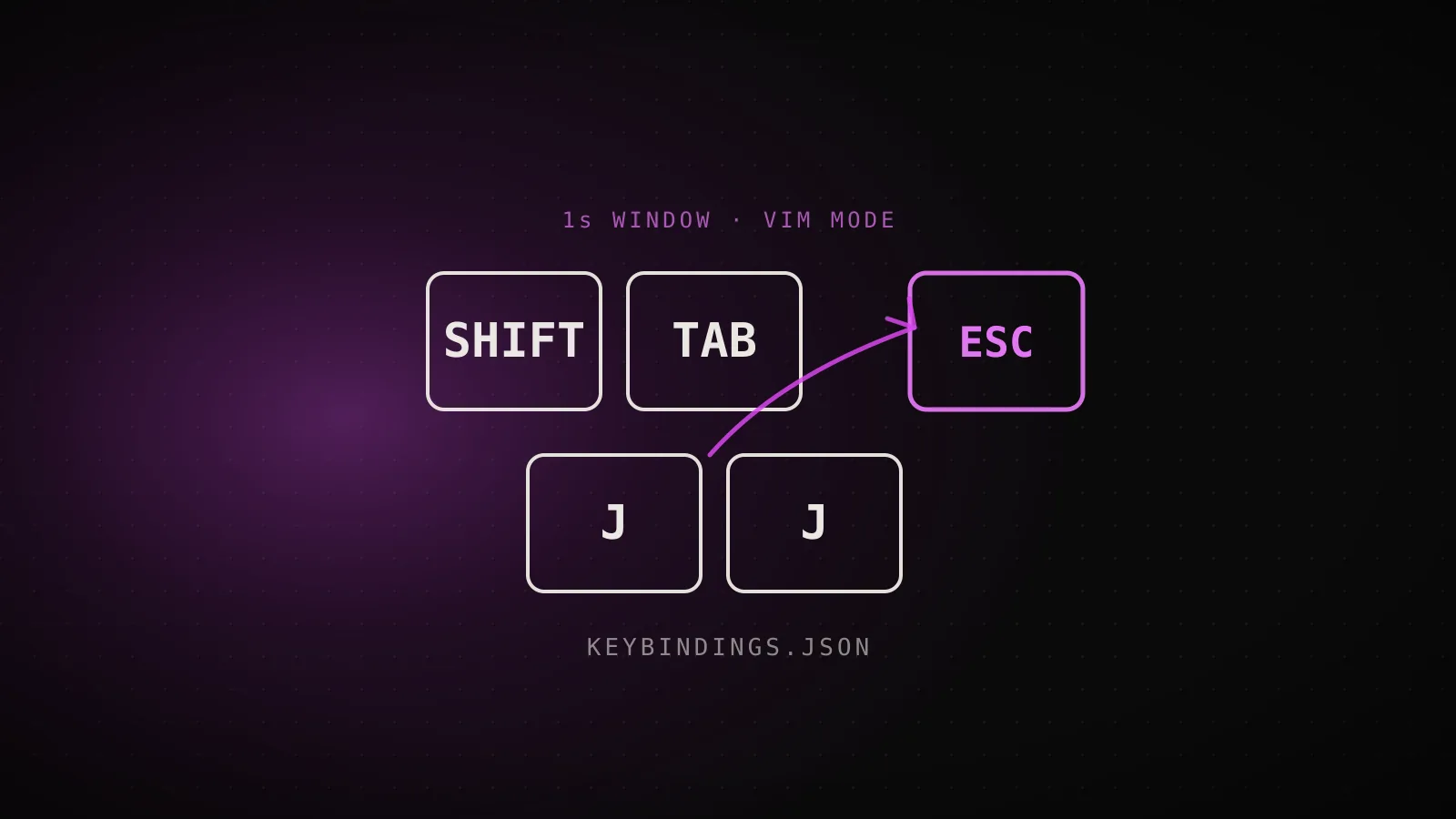
The vim-mode question I get asked most has nothing to do with a motion or a text object. It's "how do I get back to NORMAL mode without leaving the home row for Escape." Claude Code's answer is vimInsertModeRemaps, a setting that maps a two-key INSERT-mode sequence to Escape. It shipped in v2.1.208, and here's what it does, character by character, when you type the default jj mapping:
What { "jj": "<Esc>" } actually does
vimInsertModeRemapsSecond j within 1s
Type j
Inserted normally, as text
Type j again, within 1 second
Claude Code recognizes the sequence
Both characters removed
Switches straight to NORMAL mode
Second j after 1s
Type j
Inserted normally, as text
Wait past 1 second, or type another key
The window closes
Both characters stay
Literal text - keeps typing a word like "jjust"
This is why the remap doesn't break typing a real word that starts with a repeated letter - pause naturally between the two keystrokes and both land as text.
Add it to your user settings file, alongside editorMode and, if you want readline-style word boundaries for Ctrl+W too, keybindingFlavor:
{
  "editorMode": "vim",
  "vimInsertModeRemaps": { "jj": "<Esc>" },
  "keybindingFlavor": "readline"
}
That combination (vim mode, an INSERT-mode escape remap, and readline word boundaries in one file) doesn't show up assembled like this anywhere in the official docs, which cover the three settings on separate pages - each key here parses as valid JSON, checked with node -e "JSON.parse(...)" against this exact snippet before it went in this guide. Two constraints matter if you paste it in: each entry in vimInsertModeRemaps must be exactly two printable characters mapping to the literal string "<Esc>" - anything else is silently ignored - and Claude Code only reads this setting from your user settings file, --settings, or managed settings. A project's .claude/settings.json or .claude/settings.local.json can't set it, specifically so a repository you check out can't remap your own keystrokes.
When this reference isn't enough
- You're not using vim mode. Skip straight past the last two sections -
vimInsertModeRemapsand vim's NORMAL-mode commands only apply once Editor mode is set tovimin/config. - You want one page with everything, not just shortcuts. This guide covers keyboard shortcuts and their vim-mode edge cases in depth; it doesn't list slash commands, hook events, or CLI flags. The Claude Code cheat sheet puts all of that, shortcuts included, in one searchable page.
- Your terminal or IDE renders shortcuts differently. The docs are explicit that keyboard shortcuts vary by platform and terminal - press
?on an empty prompt for the exact list your environment reports, since a terminal multiplexer or the VS Code extension can shift a binding from what's documented here. - You're chasing a permission-mode or checkpoint workflow, not a keystroke.
Shift+Tab's mode cycling is covered here as a shortcut; the six modes it cycles through and what each one actually allows is its own guide. Same forEsc, Escand the rewind menu it opens - what gets restored and what doesn't is covered in the checkpoints guide.
FAQ
How do I see all of Claude Code's keyboard shortcuts?
Press ? on an empty prompt to toggle the shortcut help panel inline, or run /keybindings to open your keybindings file and see every action's current binding. This page and the searchable cheat sheet cover the full set if you want it outside the terminal.
How do I customize Claude Code's keyboard shortcuts?
Run /keybindings to create or open ~/.claude/keybindings.json, then add a binding block naming a context (Chat, Global, Transcript, and so on) and a map of keystrokes to actions. Changes apply automatically without restarting Claude Code.
How do I turn on vim mode in Claude Code?
Open /config and switch Editor mode to vim. Claude Code keeps your mode and cursor position when you toggle the transcript viewer or open another panel, so leaving the prompt in NORMAL mode keeps it there when you come back.
How do I exit vim insert mode without reaching for Escape?
Add "vimInsertModeRemaps": { "jj": "<Esc>" } to your user settings file (~/.claude/settings.json). Typing j twice within one second removes both characters and switches to NORMAL mode; wait longer or type something else and both letters stay as text.
Can I remap vim's own keys, like h/j/k/l?
No. Vim motions and commands aren't actions in keybindings.json - that file only rebinds Claude Code's own component-level shortcuts. The one exception is vimInsertModeRemaps, which maps a two-key INSERT-mode sequence to Escape and nothing else.
Most of this set you'll absorb by using it - Shift+Tab and Esc, Esc stick after a day. The two worth bookmarking on purpose are the ones this guide leans on: keybindings.json for anything you want bound differently, and vimInsertModeRemaps the moment vim mode's Escape reach starts to bother you. If you'd rather have the tuned config than assemble it yourself, ClockedCode's curated Claude Code setup ships a starter settings.json with the rest of the defaults worth changing alongside it.