Claude Code on WSL: Setup, Common Gotchas, and Fixes
 By Neo Zino - builder of ClockedCode11 min read
Install Claude Code inside WSL, fix WSL1's exec-format error, get login and screenshot pasting working, and stop the search misses /mnt/c causes.
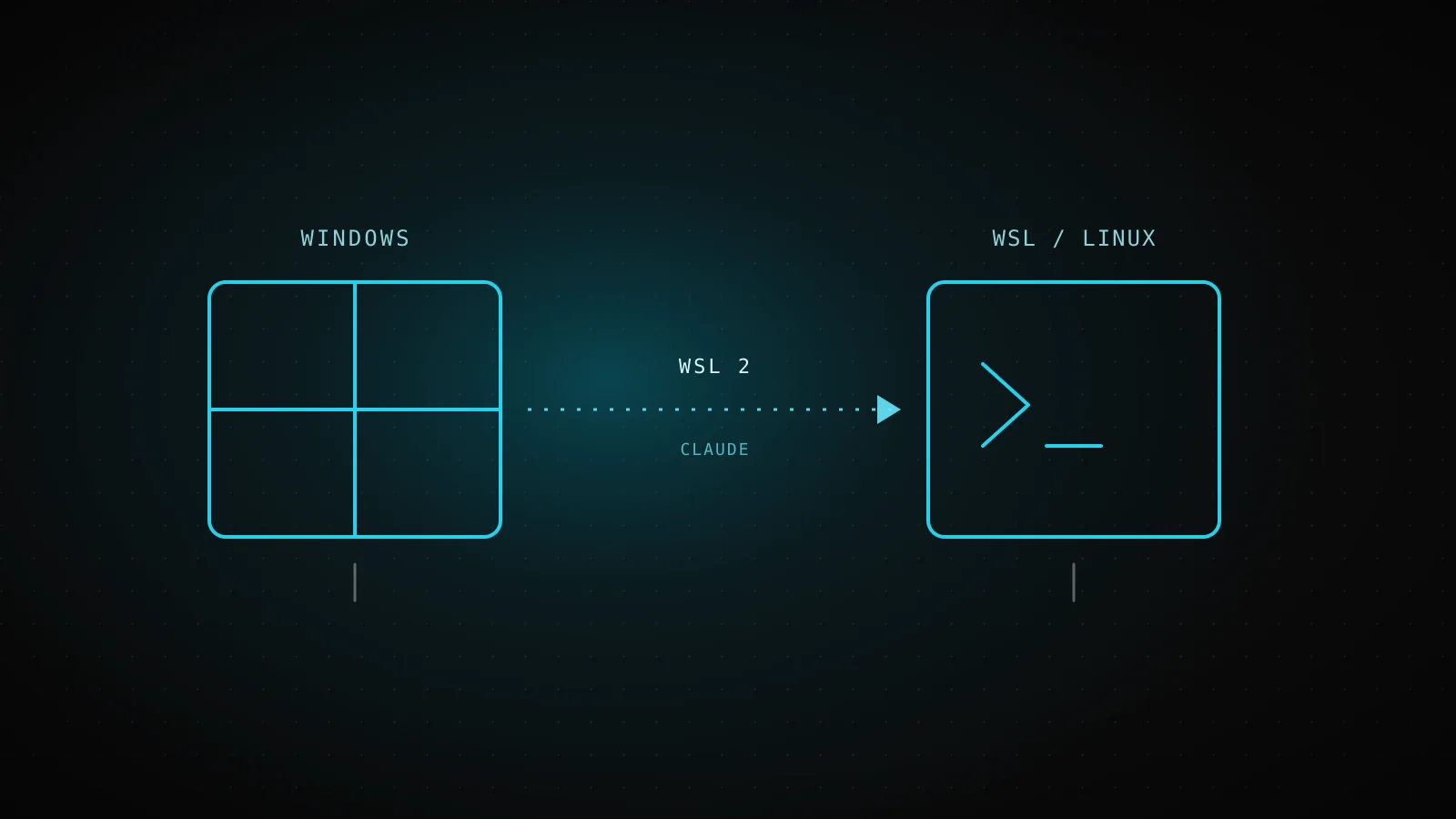
Made with DispatchSEO
On this page
Claude Code installs inside WSL with the exact same one-line command you'd run on native Linux - curl -fsSL https://claude.ai/install.sh | bash - because as far as the installer is concerned, WSL just is Linux. There's no separate Windows-WSL package to hunt for. What actually trips people up is everything downstream of that: which WSL version you're on, which filesystem your project sits on, and a handful of WSL-only behaviors - a second image-paste shortcut, a browser that opens on the wrong machine at login - that no generic "install Claude Code on Linux" guide mentions.
TL;DR: Run
curl -fsSL https://claude.ai/install.sh | bashinside your WSL distro - same command as native Linux, no separate WSL package. Keep your project on the Linux filesystem (/home/you/...), not/mnt/c/..., or search and file I/O get measurably slower. On WSL1 you'll hitExec format error; convert to WSL2 withwsl --set-version <DistroName> 2. IfCtrl+Vdoesn't paste a screenshot, useAlt+V- both are bound on WSL specifically because some terminals swallowCtrl+V. And if login hangs after the browser opens, paste the code it shows into the terminal instead of waiting for a redirect.
Installing Claude Code inside WSL
Open your WSL distro (Ubuntu, Debian, whatever you set up) and run the native installer exactly as you would on any Linux box:
curl -fsSL https://claude.ai/install.sh | bash
That's the whole install. It downloads a standalone binary, needs no Node.js, and auto-updates itself in the background afterward - identical behavior to macOS and native Linux. The one thing to get right is where you run it: install and launch claude inside the WSL terminal, not from PowerShell or CMD. A WSL install doesn't show up as a command in a native Windows shell, and a native Windows install doesn't show up inside WSL - they're separate environments as far as your PATH is concerned. If you've already got Claude Code working on native Windows and are wondering whether to add a WSL install too, the full install guide covers when native Windows is the better call versus WSL - short version: WSL supports sandboxed command execution and native Windows doesn't.
Confirm it worked the same way you would anywhere else:
claude --version
A working install prints a version number followed by (Claude Code). From there, cd into a project and run claude to log in and start your first session - see what to run in your first few minutes once you're in.
Two different things called "Claude Code on WSL"
Before going further, it's worth separating two setups that get conflated under the same search term:
Two different things called "Claude Code on WSL"
CLI in a WSL terminal
You open Ubuntu (or another distro) and run claude directly
- Same install command as native Linux - curl -fsSL https://claude.ai/install.sh | bash
- The claude process, git, and every tool run inside the distro
- This is what "installing Claude Code on WSL" means for almost everyone
Desktop app's Code tab, WSL session
You open Claude Desktop on Windows and pick a WSL distro from the environment picker
- Desktop itself stays on Windows; only the session's process runs inside the distro
- Requires WSL 2 specifically - WSL 1 isn't supported for this path
- The integrated terminal, connectors/plugins, session forking, and @-file suggestions aren't available yet in this mode
Sourced from code.claude.com/docs/en/setup and /docs/en/desktop-wsl. Checked 2026-09-22.
This guide is mostly about the left column - the CLI running inside a WSL terminal, which is what the vast majority of "Claude Code WSL" searches actually mean. If you're specifically looking for the Desktop app's WSL session picker, the gotchas below around paths and search performance still apply, but the login and paste-image fixes don't - Desktop manages those differently.
WSL 1's exec format error, and why WSL 2 doesn't have it
If claude installs but fails to run with:
cannot execute binary file: Exec format error
you're on WSL1. This is a documented native-binary regression, not something you did wrong - the binary's program headers changed in a way WSL1's older loader can't parse, and it's tracked as GitHub issue #38788. WSL2 uses a real Linux kernel underneath and doesn't hit this at all, which is one more reason WSL2 is the version worth being on regardless.
Convert your distro from PowerShell:
wsl --set-version <DistroName> 2
If you're stuck on WSL1 for a reason you can't work around, you can still run the binary through the dynamic linker directly. Add this function to ~/.bashrc inside WSL:
claude() {
  /lib64/ld-linux-x86-64.so.2 "$(readlink -f "$HOME/.local/bin/claude")" "$@"
}
Then source ~/.bashrc and claude works again, just without WSL2's other advantages.
Where your project lives: /mnt/c versus the Linux filesystem
WSL lets you address the same project three or four different ways depending on which side is asking, and it's easy to end up on the slow one without realizing it:
The same project, four ways to write its path
Linux path
Native speed/home/you/projectclaude and every tool running inside the WSL distro
Windows-drive path (from inside WSL)
Cross-filesystem, slower/mnt/c/Users/you/projectWSL reading files that live on the Windows filesystem
Windows path
Native speedC:\Users\you\projectPowerShell, CMD, and native Windows apps
UNC path to a distro (from Windows)
Native speed\\wsl.localhost\Ubuntu\home\you\projectWindows Explorer or VS Code reaching into a running distro
Speed per Microsoft's WSL filesystem docs and code.claude.com's own /mnt notes. Checked 2026-09-22.
The practical rule: clone and keep your Claude Code projects inside the WSL filesystem (/home/you/project), not on the Windows drive via /mnt/c/Users/you/project. Reading across that /mnt/c boundary behaves like a network filesystem, and it's slow enough that code.claude.com's own troubleshooting docs single it out: search can return fewer matches than expected when your project lives there, even though claude doctor still reports search as OK because the ripgrep binary itself is working fine - the shortfall is disk I/O, not a broken tool. If you're already set up on /mnt/c and don't want to move the whole project, the workaround the docs give is submitting narrower searches ("find JWT validation in the auth-service package" instead of a bare keyword) so fewer files need to be scanned.
Pasting a screenshot: Ctrl+V, Alt+V, and why WSL needs both
Claude Code supports pasting an image straight from your clipboard - it drops an [Image #N] chip into the prompt you can reference positionally. On most platforms that's Ctrl+V (or Cmd+V in iTerm2). On WSL specifically, Claude Code binds both Ctrl+V and Alt+V to the same action, because some WSL-hosted terminals intercept Ctrl+V for their own clipboard handling before Claude Code's input loop ever sees it. If you paste a screenshot and nothing happens, that's almost always what's going on - press Alt+V instead and it works the same way.
This is easy to miss because it's not an error message, just a keystroke that silently does nothing, and it's specific enough to WSL that it doesn't show up in general Claude Code documentation searches.
Login opens a browser, but it never comes back
The first time you run claude in a fresh WSL install, it opens your browser for a one-time OAuth login. In WSL2 (and the same thing happens over SSH or inside a container), the browser and Claude Code's local callback server usually can't reach each other over the network, so the automatic redirect back to your terminal never fires - the terminal just sits there after you approve the login in the browser.
You don't need to fix the networking. After you sign in, the browser shows a login code instead of redirecting; paste that code into the terminal at the Paste code here if prompted prompt and login completes normally.
Four symptoms that only happen on WSL
cannot execute binary file: Exec format error when running claudeYou're on WSL1 - a known native-binary regression (GitHub issue #38788) that WSL1's loader can't handle
Convert the distro with wsl --set-version <DistroName> 2 from PowerShell, or invoke the binary through the dynamic linker if you must stay on WSL1
exec: node: not found when running claude after an npm installWSL imported the Windows PATH by default and is calling the Windows install of Node instead of a Linux one
Check with which node - a /mnt/c/ path means it's the Windows binary; install Node via your distro's package manager or nvm instead
Login opens a browser, but it never redirects back and the session just waitsWSL2's browser and Claude Code's local callback server aren't on a network path that can reach each other
Paste the login code the browser shows into the "Paste code here if prompted" prompt, or set BROWSER to your Windows browser's path first
Ctrl+V does nothing when pasting a screenshot into the promptSome WSL terminals intercept Ctrl+V before Claude Code sees it
Press Alt+V instead - both are bound on WSL specifically for this
Sourced from code.claude.com's troubleshoot-install and interactive-mode docs. Checked 2026-09-22.
If the browser doesn't open automatically at all, point BROWSER at your Windows browser's path before running claude:
export BROWSER="/mnt/c/Program Files/Google/Chrome/Application/chrome.exe"
claude
npm, node, and PATH: when WSL picks up the Windows versions
Skip this section if you used the native installer above - it only applies if you installed with npm install -g @anthropic-ai/claude-code inside WSL. WSL imports your Windows PATH by default, which means a WSL shell can genuinely see and run C:\...\node.exe, and npm sometimes reaches for that instead of a Linux-native Node.
Two symptoms point straight at this:
-
npm reports a platform mismatch during install. Run
npm config set os linuxfirst, then reinstall withnpm install -g @anthropic-ai/claude-code --force. Don't addsudo- if you hit a permission error instead, fix your npm prefix, not the command. -
exec: node: not foundwhen you runclaude. Check which binaries you're actually calling:which npm which nodeA path starting with
/mnt/c/means you're calling the Windows install; a path starting with/usr/or/home/you/.nvm/means you're calling a Linux one. Install Node through your distro's package manager or through nvm to get a Linux-native version, and if you use nvm in both Windows and WSL, make sure the WSL shell actually loads nvm - addexport NVM_DIR="$HOME/.nvm"and the nvm loader to your~/.bashrcso a Linux Node wins over whatever Windows nvm put on the imported PATH.
None of this applies to the native installer from the top of this guide - it ships its own binary and never touches Node at runtime, which is one more reason to prefer it over npm inside WSL specifically.
When native Windows is the better call
WSL isn't automatically the right choice just because your toolchain came from Linux originally. Native Windows needs nothing extra beyond the install command itself (Git for Windows is optional, only useful if you want the Bash tool over PowerShell), and it's the simpler setup for Windows-native projects and tooling that don't have a Linux equivalent. The real tradeoff is sandboxed command execution, which WSL2 supports and native Windows doesn't - if you rely on that, WSL is the one that gives it to you. WSL1 supports neither sandboxing nor, as covered above, the native binary at all without a workaround, so it's not really a third option worth picking on purpose.
FAQ
Does Claude Code need a separate install for WSL?
No. Inside WSL you run the exact same native installer as native Linux - curl -fsSL https://claude.ai/install.sh | bash - with no Windows-specific package. The install, verify, and uninstall commands are all identical to a plain Linux setup; what differs is everything around the install, not the install itself.
Why does claude fail with "Exec format error" on WSL?
That error means you're on WSL1, not WSL2. It's a known native-binary regression (tracked as GitHub issue #38788) where WSL1's loader can't handle the binary's program headers. Convert your distro with wsl --set-version <DistroName> 2 from PowerShell, or, if you need to stay on WSL1, wrap the binary through the dynamic linker (/lib64/ld-linux-x86-64.so.2) in your .bashrc.
Should my Claude Code project live on /mnt/c/ or inside WSL's own filesystem?
Inside WSL's own filesystem - a path like /home/you/project, not /mnt/c/Users/you/project. Reading files on the Windows drive from inside WSL crosses a network-filesystem-like boundary that's measurably slower, and code.claude.com's own troubleshooting docs note it can make Claude Code's search return fewer matches than expected, even though claude doctor still reports search as OK.
Why doesn't Ctrl+V paste a screenshot into Claude Code on WSL?
Some WSL terminals intercept Ctrl+V before Claude Code's own paste-image handler sees it. Claude Code binds Alt+V as a second shortcut specifically for this - press that instead and the [Image #N] chip appears the same way it would with Ctrl+V.
Why does login hang after the browser opens in WSL?
WSL2's browser and Claude Code's local OAuth callback server usually aren't reachable from each other, so the redirect never completes. After you sign in, the browser shows a login code instead - paste that into the terminal's "Paste code here if prompted" prompt. If the browser never opens at all, set BROWSER to your Windows browser's path first, for example export BROWSER="/mnt/c/Program Files/Google/Chrome/Application/chrome.exe".
What's the difference between running Claude Code in a WSL terminal and Desktop's WSL session?
They're two different setups that share the same search term. Running claude inside a WSL terminal is a normal CLI install - you open the distro and run the install command yourself. Claude Desktop's Code tab can instead launch a session that runs inside a WSL2 distribution while Desktop itself stays on Windows; that path requires WSL2 specifically and doesn't yet support the integrated terminal, connectors, session forking, or @-file suggestions.
The install is the easy part
curl -fsSL https://claude.ai/install.sh | bash is identical whether you're on native Linux or WSL - the actual work is staying on WSL2, keeping your project inside the Linux filesystem instead of /mnt/c, and knowing that Alt+V, a pasted login code, and wsl --set-version are the answers to the four things that only ever go wrong on WSL specifically. Once that's sorted, ClockedCode is the fast way past the generic defaults - a tuned CLAUDE.md, curated tools, and a starter permissions config, installed with one paste.