How to Start Claude Code in Your Terminal (First-Run Walkthrough)
 By Neo Zino - builder of ClockedCode6 min read
How to start Claude Code in your terminal: what the login and welcome screen show, the day-one commands worth knowing, and how to exit cleanly.
Made with DispatchSEO
On this page
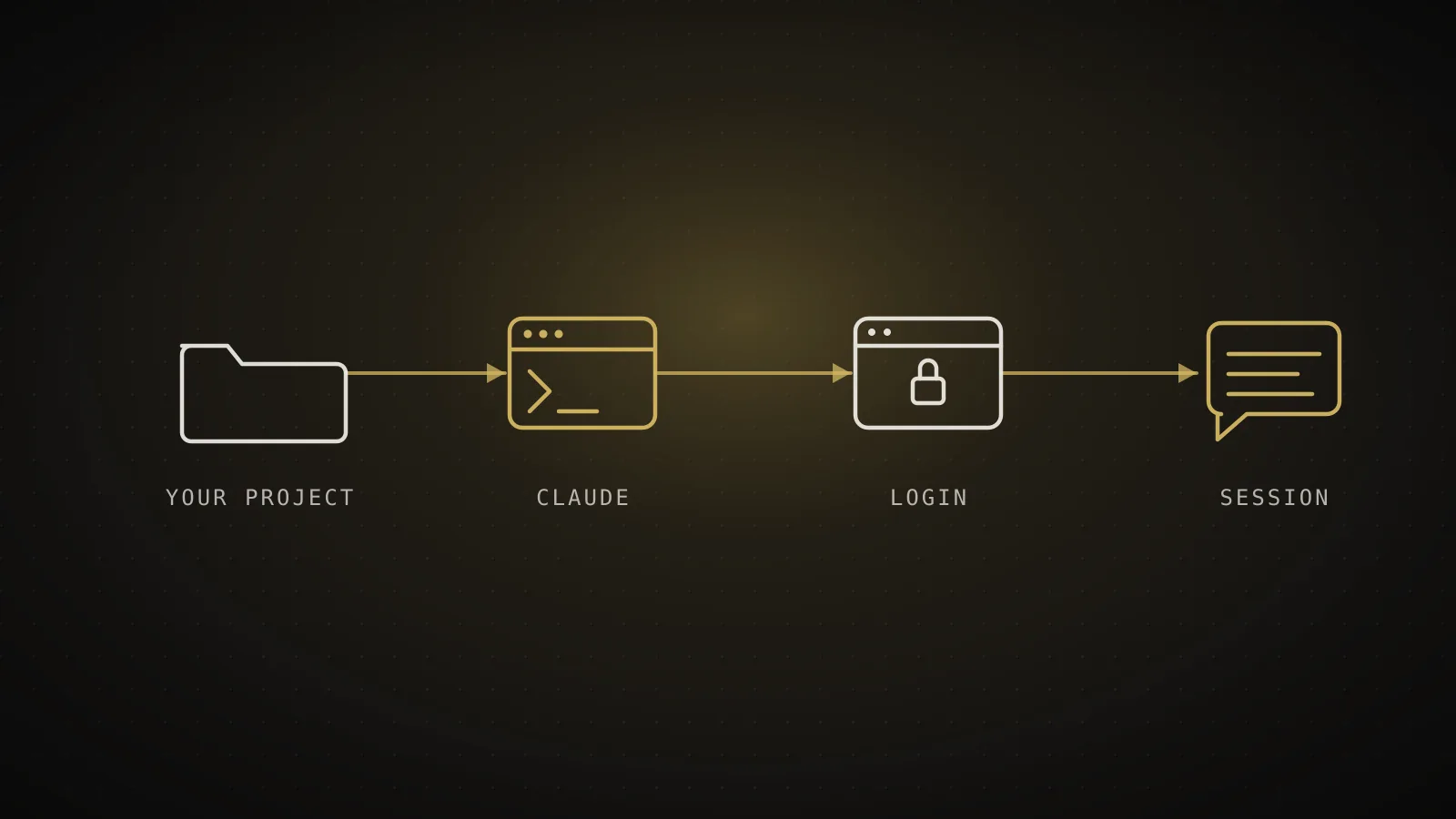
Open a terminal in the project you want Claude Code to work on, type claude, and press enter. The first run opens your browser for a one-time login; after that you land in a session with the version, model, and working directory shown above an empty prompt box, ready for a plain-English request. Everything below - what that screen means, the handful of commands worth knowing before you type anything else, and how to back out cleanly - is the part the install guide stops short of covering.
TL;DR:
cdinto your project, runclaude, and log in through the browser tab that opens (or approve yourANTHROPIC_API_KEYif you've set one). You're then in a live session -/helplists every command,/initwrites a starterCLAUDE.md,/clearwipes the conversation without leaving, and/exit(or Ctrl+D twice) closes it.claude -cin the same folder picks the conversation back up later.
What you'll see on the first run
claude with no arguments starts an interactive session in whatever folder you're standing in - that folder becomes the project Claude reads from, so run it from your project root, not your home directory:
cd /path/to/your/project
claude
First run prompts a login: a browser tab opens for a one-time OAuth flow against your Claude account, and once you approve it there, the terminal picks up automatically - no code to copy back. If you've set the ANTHROPIC_API_KEY environment variable instead, Claude Code skips the browser and asks you to approve the key inline. Either way, credentials are stored afterward, so this step only happens once per machine.
Once you're in, the screen carries three things above the prompt - the version, the model you're talking to, and the working directory it's reading from:
$ claude
Claude Code v2.1.220VERSIONModel: Claude Fable 5MODELcwd: ~/projects/your-appWORKING DIR> PROMPT BOX/ for commands · Tab to complete · ↑ for history · Shift+Tab to cycle permission modes
That prompt box is a plain text field, not a form: type a question or a task in ordinary English and press enter. Shift+Tab cycles between permission modes without leaving the prompt - the default mode asks before every file edit, and the full mode reference is worth a read once you've sent your first few messages, not before.
Shell commands vs. session commands
New users mix these two up constantly, and it's the fastest way to get a confusing error: shell commands run from your OS terminal to start or resume a session, session commands only exist once you're already inside one.
Shell commands
typed before a session starts
claudeStart an interactive sessionclaude "task"Run a one-time taskclaude -cContinue the most recent conversationclaude -p "query"Run one query, print the answer, exit
Session commands
typed once you're inside claude
/helpShow available commands/initGenerate a CLAUDE.md for this project/clearStart a new conversation, empty context/exitLeave the session (Ctrl+D twice also works)
Typing /help into bash does nothing useful - bash has never heard of a /help command, it just prints an error. And typing claude -c inside an active session doesn't do anything either, since -c is a flag the claude binary reads on launch, not something the running session listens for. If a command isn't doing what you expect, the first check is which side of that line it belongs on.
A first question worth asking
what does this project do? is the question the official docs lead with, and it's a good one - Claude Code reads your files as needed to answer it, so there's nothing to set up before you can ask it something real. A few more that work the same way without touching anything:
what technologies does this project use?where is the main entry point?explain the folder structure
Once you're ready to make an actual change, /init is worth running before you ask for one: it generates a starter CLAUDE.md from what Claude finds in your repo - stack, conventions, structure - and every session after that reads it automatically, so you stop re-explaining the same project facts each time you /clear.
Where new sessions actually go wrong
Four things that look like a broken install and aren't:
Four things that look broken and aren't
Nothing happens after you type claude
A browser tab should open for login on first use. If it didn't, retype claude, or set ANTHROPIC_API_KEY to skip the browser step entirely.
claude: command not found
The install worked, your shell's PATH just doesn't include it yet - a one-line fix, not a broken install.
Claude reads files but won't change anything
You're in plan mode. Press Shift+Tab to cycle back to the default mode so edits are allowed.
Claude doesn't seem to know your code
You started the session from the wrong folder. Claude reads files from your current working directory - cd into the project first.
The most common of the four is the second one, and it has its own dedicated fix if the PATH edit there doesn't immediately click. The plan-mode one catches people who copied a claude --permission-mode plan command from somewhere and forgot they're in a read-only mode - Shift+Tab gets you back out.
What to set up next
A working session is enough to start typing requests, but two changes make the biggest difference in the first week: a CLAUDE.md that actually describes your project (/init gets you a draft, or the CLAUDE.md generator builds one from a short questionnaire if you'd rather skip typing it by hand), and a permission setup that stops re-approving the same handful of commands every session - the safe starter config covers that in about five minutes.
FAQ
What happens the first time I run claude?
A browser tab opens for a one-time login against your Claude account (or, if you've set the ANTHROPIC_API_KEY environment variable, Claude Code skips the browser and asks you to approve the key instead). Once that's done, you land in a session showing the version, current model, and working directory above an empty prompt box - your credentials are stored after that, so you won't see the login step again on this machine.
Do I need to install Claude Code before this works?
Yes - claude has to already be on your PATH. If typing it prints "command not found" instead of starting a session, the install guide covers every platform's install command, and the command-not-found fix covers the one-line PATH issue that causes that specific error.
What's the difference between a shell command and a session command?
Shell commands (claude, claude -c, claude -p "query") are typed in your OS terminal before a session exists, to start or resume one. Session commands (/help, /init, /clear, /exit) only work once you're already inside a running claude session - typing /help into a bash prompt just gets "command not found", because bash has never heard of it.
What should I type first once I'm in a session?
"what does this project do?" is a solid opener - Claude Code reads your project files as needed to answer, so there's nothing to configure first. /init is worth running early too: it generates a starter CLAUDE.md from what Claude finds in your repo, which later sessions read automatically.
How do I exit Claude Code?
Type /exit and press enter, or press Ctrl+D twice on an empty prompt. Typing exit in plain English also works. None of the three end your conversation history - claude -c in the same folder picks it back up.
One command, one login, then it's just a conversation
Everything past claude and a browser tab is optional polish: /help if you forget a command, /init before your first real change, /exit or Ctrl+D twice when you're done. The part that actually determines whether Claude Code feels useful or generic from here is what it knows about your project going in - which is the exact gap ClockedCode closes with a tuned CLAUDE.md, curated tools, and a permission config installed in one paste instead of assembled by hand.