Claude Code Install: The Complete Setup Guide (Mac, Windows, Linux)
 By Neo Zino - builder of ClockedCode12 min read
Install Claude Code on Mac, Windows, or Linux: every method (native installer, npm, Homebrew, WinGet) plus system requirements and how to verify it worked.
Made with DispatchSEO
On this page
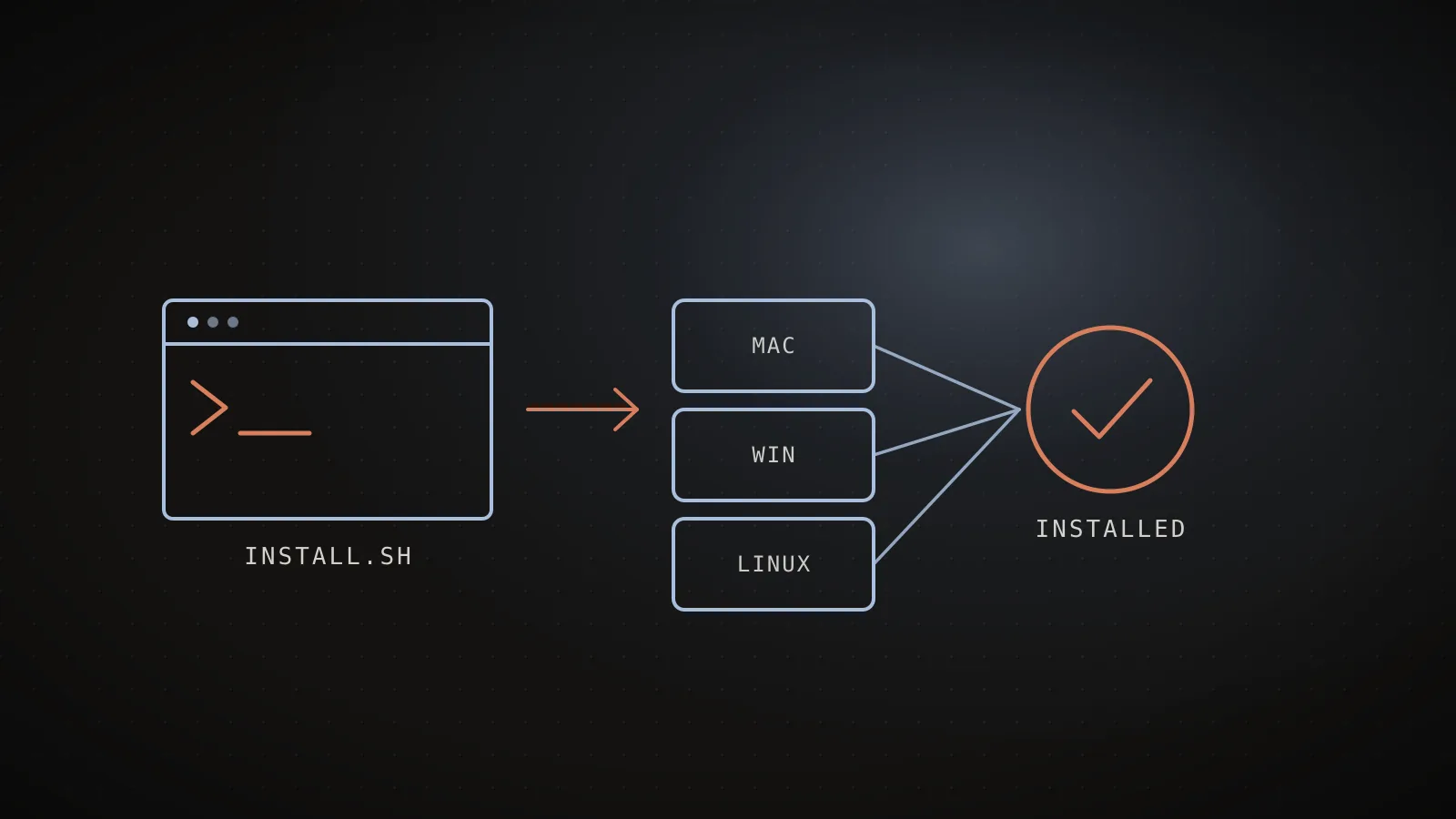
The fastest way to install Claude Code is one line in a terminal: curl -fsSL https://claude.ai/install.sh | bash on Mac, Linux, or WSL, or irm https://claude.ai/install.ps1 | iex in Windows PowerShell. That native installer needs no Node.js and updates itself in the background afterward. If you'd rather go through a package manager you already use - npm, Homebrew, WinGet, or apt/dnf/apk on Linux - every route is covered below, along with the exact commands to confirm the install actually worked and get logged in.
TL;DR: Run
curl -fsSL https://claude.ai/install.sh | bashon Mac/Linux/WSL orirm https://claude.ai/install.ps1 | iexon Windows PowerShell - no Node.js needed, and it auto-updates itself afterward. Prefer a package manager instead?brew install --cask claude-code,winget install Anthropic.ClaudeCode, andnpm install -g @anthropic-ai/claude-code(Node 22+) all work too, though only the native installer keeps itself current. Confirm it worked withclaude --version, then runclaudeinside a project folder to log in and start your first session.
System requirements before you install
Claude Code runs on a wide range of machines - this isn't a heavy install:
| Requirement | What's needed |
|---|---|
| Operating system | macOS 13.0+, Windows 10 build 1809+ / Server 2019+, Ubuntu 20.04+, Debian 10+, or Alpine Linux 3.19+ |
| Hardware | 4 GB+ RAM, x64 or ARM64 processor |
| Network | An internet connection (see the docs' network configuration page if you're behind a firewall) |
| Shell | Bash, Zsh, PowerShell, or CMD |
| Extra tooling | ripgrep, but it ships bundled with Claude Code so you don't need to install it separately |
You'll also need an account: Claude Pro, Max, Team, or Enterprise, or a Claude Console account with pre-paid API credits. The free Claude.ai plan doesn't include Claude Code - keep that in mind before you spend time troubleshooting an install that was never going to log in.
The fastest way to install: the native installer
The native installer is what Anthropic recommends first, and it's what I use myself: no Node.js dependency, it downloads a standalone binary, and it auto-updates in the background from then on.
macOS, Linux, or WSL:
curl -fsSL https://claude.ai/install.sh | bash
Windows PowerShell:
irm https://claude.ai/install.ps1 | iex
Windows CMD:
curl -fsSL https://claude.ai/install.cmd -o install.cmd && install.cmd && del install.cmd
If you're not sure which Windows shell you're in: PowerShell shows PS C:\ at the prompt, plain CMD just shows C:\. Running the PowerShell command in CMD fails with 'irm' is not recognized; running the CMD command in PowerShell fails with The token '&&' is not a valid statement separator - either error tells you which one to use instead.
On native Windows, installing Git for Windows first is optional but recommended - it gives Claude Code Git Bash to use for its Bash tool. Skip it and Claude Code falls back to PowerShell for shell commands instead, which works fine for most projects.
I ran this exact command to write this guide, and it's worth knowing where it puts things: on macOS and Linux, the installer symlinks ~/.local/bin/claude into ~/.local/share/claude/versions/<version>/, so claude update and the background auto-updater just add new version folders and repoint the symlink - your launcher never has to change.
Installing with a package manager instead
If you'd rather manage Claude Code the same way you manage everything else on your machine, four more routes are officially supported. The tradeoff across all of them is the same: none auto-update the way the native installer does, so you're responsible for running the upgrade command yourself.
Four ways to install without the native script
none auto-updatenpm
macOS, Linux, Windowsnpm install -g @anthropic-ai/claude-codeNeeds Node.js 22+. Update manually - no background auto-update.
Homebrew
macOS, Linuxbrew install --cask claude-codeNeeds Homebrew installed. Update manually - no background auto-update.
WinGet
Windowswinget install Anthropic.ClaudeCodeNeeds WinGet (built into Windows 11). Update manually - no background auto-update.
apt / dnf / apk
Debian/Ubuntu, Fedora/RHEL, Alpineapt install claude-code (after adding the signed repo)Needs sudo + the repo's signing key. Update manually - no background auto-update.
Commands and auto-update behavior from code.claude.com's advanced setup docs, checked 2026-07-30.
A few notes worth knowing before you pick one:
- npm requires Node.js 22 or later as of Claude Code v2.1.198. On an older Node version, npm prints an
EBADENGINEwarning but the install still completes - the package only uses Node to run its postinstall script, which links in a native binary that Node never touches again afterward. Never runnpm install -gwithsudo; if you hit a permission error instead, fix your npm prefix rather than reaching forsudo. - Homebrew ships two casks:
claude-codetracks the stable channel (about a week behind, skipping releases with major regressions) andclaude-code@latestgets every release immediately. Pick one, and remember which -brew upgradeneeds the matching name. - Linux package managers (apt, dnf, apk) need a one-time repo and signing-key setup before the actual install command; the advanced setup docs have the full per-distro commands, including the exact GPG fingerprint to check the key against before you trust it.
Installing on Windows: native, WSL2, or WSL1
Windows is the one platform with a real decision to make before you type a command, because "install Claude Code on Windows" can mean three different environments:
Pick where your projects actually live
Native Windows
No sandboxingRequires: Nothing extra - Git for Windows is optional
Best for: Windows-native projects and tools
WSL 2
Sandboxing supportedRequires: WSL 2 enabled
Best for: Linux toolchains, or you want sandboxed command execution
WSL 1
No sandboxingRequires: WSL 1 enabled
Best for: WSL 2 isn't available on this machine
Whichever you pick, install and run claudeinside that same environment - it won't show up in the other one.
Whichever you pick, stay consistent: install and run claude inside that same environment. A WSL install of Claude Code doesn't show up as a command in a native PowerShell prompt, and a native Windows install doesn't show up inside WSL - they're separate filesystems as far as the shell is concerned.
Installing on Alpine Linux and musl-based distros
This is the platform every other guide for this keyword skips, and it's exactly where the documented commands fail without one extra step. Alpine doesn't ship bash or curl by default, so the standard install command errors out with not found until you install them first:
apk add bash curl libgcc libstdc++ ripgrep
ripgrep lives in Alpine's community repository - if apk reports it's missing, add the repository for your Alpine version first:
echo "https://dl-cdn.alpinelinux.org/alpine/v3.22/community" >> /etc/apk/repositories
apk update
Then, because Alpine's musl libc doesn't work with the bundled ripgrep binary, tell Claude Code to use the system one instead by setting this in settings.json:
{
  "env": {
    "USE_BUILTIN_RIPGREP": "0"
  }
}
Skip that setting and search-based tools fail on Alpine even though the install itself succeeded - a confusing failure mode if you don't know to look for it.
Verifying the install and logging in
Install to logged in, four commands
curl -fsSL https://claude.ai/install.sh | bashInstalls the binary
claude --versionPrints a version number, like 2.1.220 (Claude Code)
claude doctorRead-only install + settings diagnostics
claudeOpens the browser login, then starts your session
Tested for this guide, 2026-07-30
claude doctor on a native install here reported version 2.1.220. A fresh npm install -g @anthropic-ai/claude-code --dry-run resolved the exact same release across all eight platform packages. The native and npm install paths aren't drifting apart right now - worth re-checking if you ever see them disagree.
claude --version is the quick check - a working install prints a version number followed by (Claude Code). claude doctor goes further: it's a read-only diagnostic that reports your install method, auto-update channel, and any settings-file errors without starting an actual session, which makes it the first thing worth running if something feels off rather than guessing.
Starting your first session
Open a terminal in the project you want Claude Code to work on and run:
cd /path/to/your/project
claude
First run prompts you to log in - it opens your browser for a one-time OAuth flow against your Claude account. If you've set the ANTHROPIC_API_KEY environment variable instead, Claude Code skips the browser and asks you to approve the key. Either way, your credentials are stored afterward and you won't be asked again until you /logout or switch machines.
Once you're in, /help lists every session command and what does this project do? is a solid first prompt - Claude Code reads your project files as needed, so there's nothing to configure before asking it something real.
Keeping Claude Code updated (or not)
Native installs check for updates on startup and periodically while running, then apply them in the background - claude doctor shows the result of the last attempt. To force an update immediately instead of waiting:
claude update
To stop the background checks without blocking manual updates, set DISABLE_AUTOUPDATER to "1" in the env block of your settings.json. Homebrew, WinGet, and the Linux package-manager installs never auto-update through Claude Code at all - brew upgrade claude-code, winget upgrade Anthropic.ClaudeCode, or your distro's package upgrade command are the only way those stay current.
Uninstalling Claude Code
Whichever method you used to install, the same method uninstalls:
# Native install (macOS, Linux, WSL)
rm -f ~/.local/bin/claude
rm -rf ~/.local/share/claude

# npm
npm uninstall -g @anthropic-ai/claude-code

# Homebrew
brew uninstall --cask claude-code   # or claude-code@latest

# WinGet
winget uninstall Anthropic.ClaudeCode
That removes the binary but leaves your settings behind. rm -rf ~/.claude ~/.claude.json clears those too - but only run it once the VS Code extension, JetBrains plugin, and Desktop app are also uninstalled, since any of them still installed will just recreate the folder the next time it runs.
When install order actually trips people up
Two honest gotchas, both easy to avoid once you know they exist:
- Installing two methods at once. If
claude --versionprints a version you don't expect after an install, you likely have a second installation shadowing the first - a leftover shell alias from an older installer, or a native install and an npm install both on yourPATH. Checkwhich claude(orwhere claudeon Windows) to see which binary is actually running, and remove the one you don't want. - A custom launcher breaks auto-update tracking. If you've ever replaced
~/.local/bin/claudewith your own script or symlink, the native installer's background updater leaves it alone from v2.1.207 onward - new versions still land in~/.local/share/claude/versions/, but your launcher decides which one runs, and Claude Code keeps every version on disk because it can't tell which one you need.claude doctorflags this ("launcher the native installer didn't create") so it doesn't quietly go stale.
What to do after installing
Installing is the five-minute part. The setup that actually makes Claude Code useful - a tuned CLAUDE.md, a sane permission config, the handful of commands worth knowing on day one - is the part most people skip and then wonder why the tool feels generic. I wrote up everything Claude Code actually is and does as the next read if you're brand new, and a safe starter permissions config as the next thing to paste in once you're past the install. If you'd rather skip typing a CLAUDE.md by hand, my free Claude Code setup walkthrough covers the same ground with copy-paste starters.
FAQ
Is Claude Code free to install?
The CLI install itself is free and takes about a minute, but using Claude Code requires a paid Claude plan: Pro, Max, Team, Enterprise, or a Claude Console account with pre-paid API credits. The free Claude.ai plan does not include Claude Code access, so installing without one of those gets you a working CLI with nowhere to log in.
Do I need Node.js to install Claude Code?
No. The native installer (curl on Mac/Linux/WSL, irm on Windows) and the Homebrew and WinGet packages all ship a standalone binary with no Node.js dependency. Node.js 22 or later is only required if you specifically choose the npm install route (npm install -g @anthropic-ai/claude-code) - on an older Node version npm just prints a warning and keeps going, since the installed binary doesn't call Node at runtime anyway.
What are the system requirements for Claude Code?
macOS 13.0+, Windows 10 build 1809+ or Windows Server 2019+, or Linux (Ubuntu 20.04+, Debian 10+, Alpine 3.19+), with 4 GB or more of RAM on an x64 or ARM64 processor, an internet connection, and a Bash, Zsh, PowerShell, or CMD shell. Alpine and other musl-based distributions need bash, curl, libgcc, and libstdc++ installed manually before the install command works.
How do I install Claude Code on Windows: native, WSL, or WSL2?
Native Windows needs nothing extra (Git for Windows is optional, for Bash-tool support) and is the right choice for Windows-native projects, but doesn't support sandboxing. WSL 2 supports sandboxing and is the right choice if your toolchain is Linux-based; WSL 1 works as a fallback if WSL 2 isn't available, without sandboxing. Whichever you pick, install and run the claude command inside that same environment - a WSL install won't show up in a native PowerShell session, and vice versa.
How do I check that Claude Code installed correctly?
Run claude --version - a working install prints a version number followed by (Claude Code), like 2.1.220 (Claude Code). For a fuller check, claude doctor prints read-only diagnostics on the install method, auto-update status, and any settings-file errors without starting a session.
Does Claude Code update itself?
Only native installs (the curl/irm method) auto-update in the background by default. Homebrew, WinGet, and the apt/dnf/apk Linux packages all require a manual upgrade command (brew upgrade claude-code, winget upgrade Anthropic.ClaudeCode, or your package manager's upgrade command). Run claude update at any point to force an immediate check instead of waiting for the background one.
How do I uninstall Claude Code?
It depends on how you installed it: rm -f ~/.local/bin/claude && rm -rf ~/.local/share/claude for a native install, npm uninstall -g @anthropic-ai/claude-code for npm, brew uninstall --cask claude-code for Homebrew, or winget uninstall Anthropic.ClaudeCode for WinGet. Deleting ~/.claude and ~/.claude.json afterward also removes your settings, allowed-tools rules, and session history - skip that step if the VS Code extension or another interface is still installed, since it recreates the folder on its next run.
One page, every platform
That's the whole install surface: one native command for Mac, Linux, and WSL, one for Windows PowerShell, and four package-manager alternatives if you'd rather stay inside a workflow you already run. claude --version and claude doctor confirm it landed correctly, and claude in a project folder gets you logged in and working in under a minute. Once it's installed, ClockedCode is the fast way to skip past the generic defaults - a tuned CLAUDE.md, curated tools, and a permission config, installed with one paste instead of assembled by hand.