How to Update Claude Code (and Fix It When Auto-Update Fails)
 By Neo Zino - builder of ClockedCode9 min read
Update Claude Code with the right command for your install (claude update, npm, Homebrew, WinGet), fix a failed auto-update, and roll back a bad release.
Made with DispatchSEO
On this page
Run claude update, but only if you installed with the native installer. Every other install method has its own command, and claude update will not fix a copy that npm, Homebrew, or WinGet owns. Native installs also update themselves in the background, so when yours is stuck on an old version the cause is almost always a second install, a permissions problem, or a setting that turned updates off.
TL;DR: Native install:
claude update. npm:npm install -g @anthropic-ai/claude-code@latest. Homebrew:brew upgrade claude-code. WinGet:winget upgrade Anthropic.ClaudeCode. If the version does not change, runclaude doctorandwhich -a claudeto find out which copy is really running. To roll back, pass a version to the installer:curl -fsSL https://claude.ai/install.sh | bash -s 2.1.89.
Which install do you have, and which update command fits it?
Start with the question the other pages skip. Claude Code has no single updater, and the right command depends on who installed the binary. Running the wrong one is the number one reason people write "I updated and nothing changed".
One update command per install method
- Native installerUpdates itself
claude update~/.local/bin/claude is a symlink into ~/.local/share/claude/versions/
- npmManual only
npm install -g @anthropic-ai/claude-code@latestnpm -g ls @anthropic-ai/claude-code lists it
- HomebrewManual only
brew upgrade claude-code (or claude-code@latest)brew list --cask shows which cask you picked
- WinGetManual only
winget upgrade Anthropic.ClaudeCodewinget list Anthropic.ClaudeCode
- apt / dnf / apkManual only
sudo apt update && sudo apt upgrade claude-codednf: sudo dnf upgrade claude-code. apk: apk update && apk upgrade claude-code
From code.claude.com setup docs. Checked 2026-10-09.
To find out which row you are in, run claude doctor. On my machine it printed this for a native install:
Running: native (2.1.296)
Path: /home/runner/.local/share/claude/versions/2.1.296
Config install method: native
Auto-updates: enabled
Auto-update channel: latest
Last update attempt: none recorded
The Config install method line is the one to read. If it says native, claude update is yours. If you are not sure, which -a claude lists every claude on your PATH, and npm -g ls @anthropic-ai/claude-code tells you whether npm owns one. The install guide covers each method in full if you want to switch.
Two quirks worth knowing. npm update -g is the wrong npm command, because it respects the version range from your original install and may not reach the newest release. Use the @latest form above. And Homebrew has two casks: claude-code follows the stable channel and claude-code@latest follows the latest one, so brew upgrade needs the name of the one you installed.
What happened when I pinned an older version and updated back
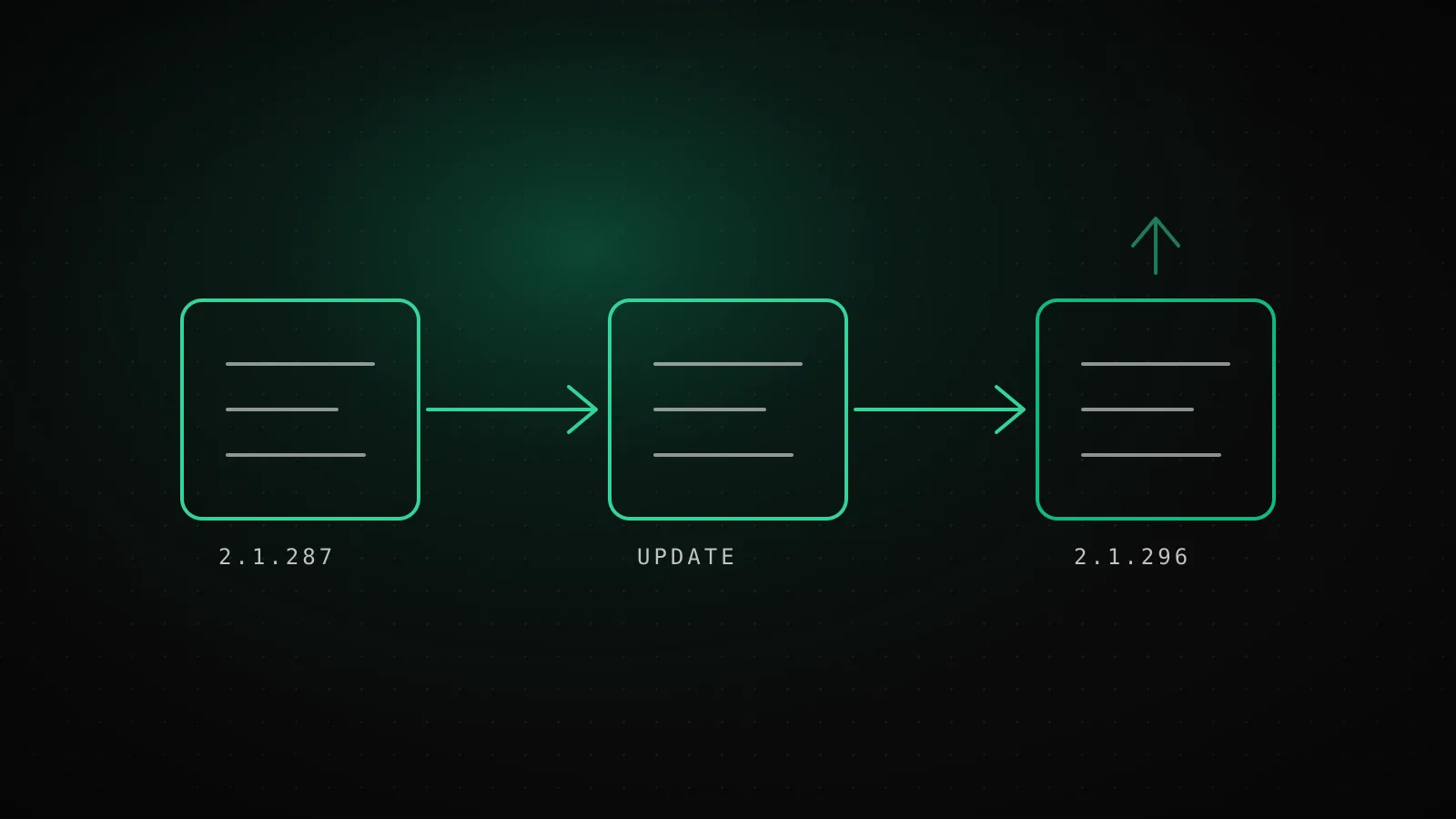
I wanted a real update to show, not a "you are already current" message, so I installed one release behind and then updated. The installer takes a version number as its argument:
curl -fsSL https://claude.ai/install.sh | bash -s 2.1.287
claude --version
2.1.287 (Claude Code)
Then the update:
claude update
Checking for updates to latest version...
Updating to 2.1.296...
Successfully updated from 2.1.287 to version 2.1.296
Roll back one release, then update forward
- Step 1
curl -fsSL https://claude.ai/install.sh | bash -s 2.1.287Installation complete! Launcher now points at versions/2.1.287
- Step 2
claude --version2.1.287 (Claude Code)
- Step 3
claude updateSuccessfully updated from 2.1.287 to version 2.1.296
Run for this guide on a Linux native install, 2026-10-09. Both version folders stayed in ~/.local/share/claude/versions/ afterward.
Two things I did not expect. First, the pinned install did not delete anything: both 2.1.287 and 2.1.296 were still sitting in ~/.local/share/claude/versions/ afterward, and only the ~/.local/bin/claude symlink moved. That is why a rollback is cheap and why the native updater never leaves you without a working binary. Second, a plain claude update while already current prints Claude Code is up to date (2.1.296), which is the message you want to see.
For the npm route, the registry tags at the time of writing were latest and next both at 2.1.296 and stable at 2.1.287, which is a handy way to see how far behind the stable channel is right now:
npm view @anthropic-ai/claude-code dist-tags --json
How do you check your version and switch release channel?
claude --version prints the version, like 2.1.296 (Claude Code). Inside a session, /config has an Auto-update channel option, or you can set it directly in settings.json:
{
  "autoUpdatesChannel": "stable"
}
latest is the default and gets releases as soon as they ship. stable is typically about a week behind and skips releases with major regressions. I checked that the setting registers: with autoUpdatesChannel set to stable, claude doctor reported Auto-update channel: stable.
One catch from the docs: a newly launched model can need a Claude Code version newer than the stable channel serves. If a model shows up in the announcement but not in your picker, move back to latest before assuming anything is broken. The changelog is where I track what each release adds.
If you want a floor under the channel, minimumVersion makes background updates and claude update refuse anything below it. Switching from latest to stable in /config offers to stay on your current version, and choosing that sets minimumVersion for you. I did not run this one for this guide, so treat it as the documented behavior.
Why did auto-update fail, and how do you fix each cause?
Work down this list in order. It goes from most common to least.
- Your install method never auto-updates. Homebrew, WinGet, apt, dnf, and apk are manual by design. Use the command from the table above. If you want Claude Code to run the upgrade for you on Homebrew or WinGet, set
CLAUDE_CODE_PACKAGE_MANAGER_AUTO_UPDATEto1. On WinGet the upgrade can fail while Claude Code is running, because Windows locks the executable. - Two installs, and the old one wins. A native install and an npm install can both be on your PATH, and the first one found is what runs.
which -a claudeshows the order. Keep one, and remove the other withnpm uninstall -g @anthropic-ai/claude-code. If a legacy~/.claude/localfolder exists from an older version,rm -rf ~/.claude/localclears it. Ifclaudethen comes back as command not found, your PATH is missing~/.local/bin. - npm cannot write its global directory. Claude Code shows a one-time notice at startup, and
claude doctorlists the fixes. Do not reach forsudo. The cleaner way out is to move to the native installer, and the EACCES guide walks through the alternatives. - npm
ENOTEMPTYduring the upgrade. An interrupted earlier upgrade leaves.claude-code-*folders behind. Delete the directory the error names, and any leftover.claude-code-*siblings, then reinstall. - You replaced the launcher. If
~/.local/bin/claudeis your own script or symlink, auto-update leaves it alone from v2.1.207 on. New versions still land inversions/, but your launcher decides which one runs.claude doctorflags it. To hand control back, delete~/.local/bin/claudeand runclaude update. - Updates are switched off.
DISABLE_AUTOUPDATERstops the background check,DISABLE_UPDATESstops everything. When I setDISABLE_UPDATES=1and ranclaude update, it answeredUpdates are disabled by your administrator. Contact your IT team to get the latest version.That wording appears even when the "administrator" is your own shell profile, which makes it confusing to debug. Check your environment and your managed settings. - The download dropped. Claude Code retries a failed download up to three attempts in total. Before v2.1.202 a single dropped connection failed immediately. If you are on a corporate network, the proxy guide covers the usual blocks.
If none of those fit, the general troubleshooting checklist is the next stop.
How do you turn auto-update off or go back a version?
There are four controls, and they block different things. I ran the first three and read the result from claude doctor or the command output:
Four switches, and what each one actually blocks
DISABLE_AUTOUPDATER=1env block in settings.json
Stops the background check. claude update still works.
doctor: Auto-updates: disabled (set by env: DISABLE_AUTOUPDATER)
DISABLE_UPDATES=1env var
Blocks every path, including claude update and claude install.
claude update: Updates are disabled by your administrator.
autoUpdatesChannelsettings.json or /config
latest (default) or stable, about a week behind.
doctor: Auto-update channel: stable
minimumVersionsettings.json
A floor: updates will not install anything below it.
Docs only, not run for this guide
To stop surprise updates but keep manual control:
{
  "env": {
    "DISABLE_AUTOUPDATER": "1"
  }
}
After adding it, claude doctor changed from Auto-updates: enabled to Auto-updates: disabled (set by env: DISABLE_AUTOUPDATER). That is your proof the setting took.
To go back a version, use the installer argument shown earlier. On Windows PowerShell the same thing is:
& ([scriptblock]::Create((irm https://claude.ai/install.ps1))) 2.1.89
A rollback only sticks if auto-update is off, so pair it with DISABLE_AUTOUPDATER. Otherwise Claude Code will quietly move you forward on its next check. The version you pass is the version you get: claude --version prints it back.
When updating is the wrong move
- Mid-task. An update applies the next time you start Claude Code, so a running session is not disturbed. Restart between tasks, not in the middle of one.
- A shared or managed machine. If your organization distributes Claude Code and sets
DISABLE_UPDATESor a required version range, local updates are meant to fail. Ask your IT team rather than working around it. - Network storage. If your home directory is on NFS and shared across machines, an in-place npm upgrade can delete the binary another machine's session is running. The docs recommend local installs and your own deployment tooling there.
- A fix you assumed was in the release. Check the changelog before updating to chase a bug. The fix may not have shipped yet.
FAQ
How do I update Claude Code to the latest version?
If you installed with the native installer, run claude update. If you installed with npm, run npm install -g @anthropic-ai/claude-code@latest. Homebrew uses brew upgrade claude-code (or claude-code@latest), WinGet uses winget upgrade Anthropic.ClaudeCode, and apt, dnf, and apk installs use your package manager's upgrade command. Only native installs update themselves in the background.
Does Claude Code update automatically?
Native installs do. Claude Code checks on startup and periodically while running, installs in the background, and the new version takes effect the next time you start it. Homebrew, WinGet, apt, dnf, and apk installs never update through Claude Code by default, and an npm install can only auto-update if the npm global directory is writable.
Why is Claude Code not updating?
The usual causes are an install method that does not auto-update, a second copy of claude earlier on your PATH, a custom launcher at ~/.local/bin/claude, an unwritable npm global directory, DISABLE_AUTOUPDATER or DISABLE_UPDATES being set, or the stable channel being a release behind. Run claude doctor first: it prints the install method, the auto-update state, and the channel.
How do I stop Claude Code from auto-updating?
Set DISABLE_AUTOUPDATER to "1" in the env block of your settings.json. That stops the background check but claude update still works. To block every update path, including manual ones, set DISABLE_UPDATES instead. Run claude doctor afterward and confirm the Auto-updates line says disabled.
How do I go back to an older version of Claude Code?
Pass the version number to the native installer: curl -fsSL https://claude.ai/install.sh | bash -s 2.1.89 on macOS, Linux, and WSL. Check it with claude --version. Auto-update will move you forward again unless you set DISABLE_AUTOUPDATER, so pair the rollback with that setting if you want it to stay put.
Keep the install boring
Pick one install method, keep it on the native installer if you can, and let claude doctor be the first thing you run when a version looks wrong. Updating the tool is the quick part. If you would rather spend the time on the setup that sits on top of it, ClockedCode ships a tuned CLAUDE.md and curated tools you can drop in with one paste.