How to Add MCP Servers to Claude Code (Step-by-Step)
 By Neo Zino - builder of ClockedCode14 min read
How to add MCP servers to Claude Code, Sentry included: the exact commands, scoping, OAuth, verifying the connection, and the errors you'll actually hit.
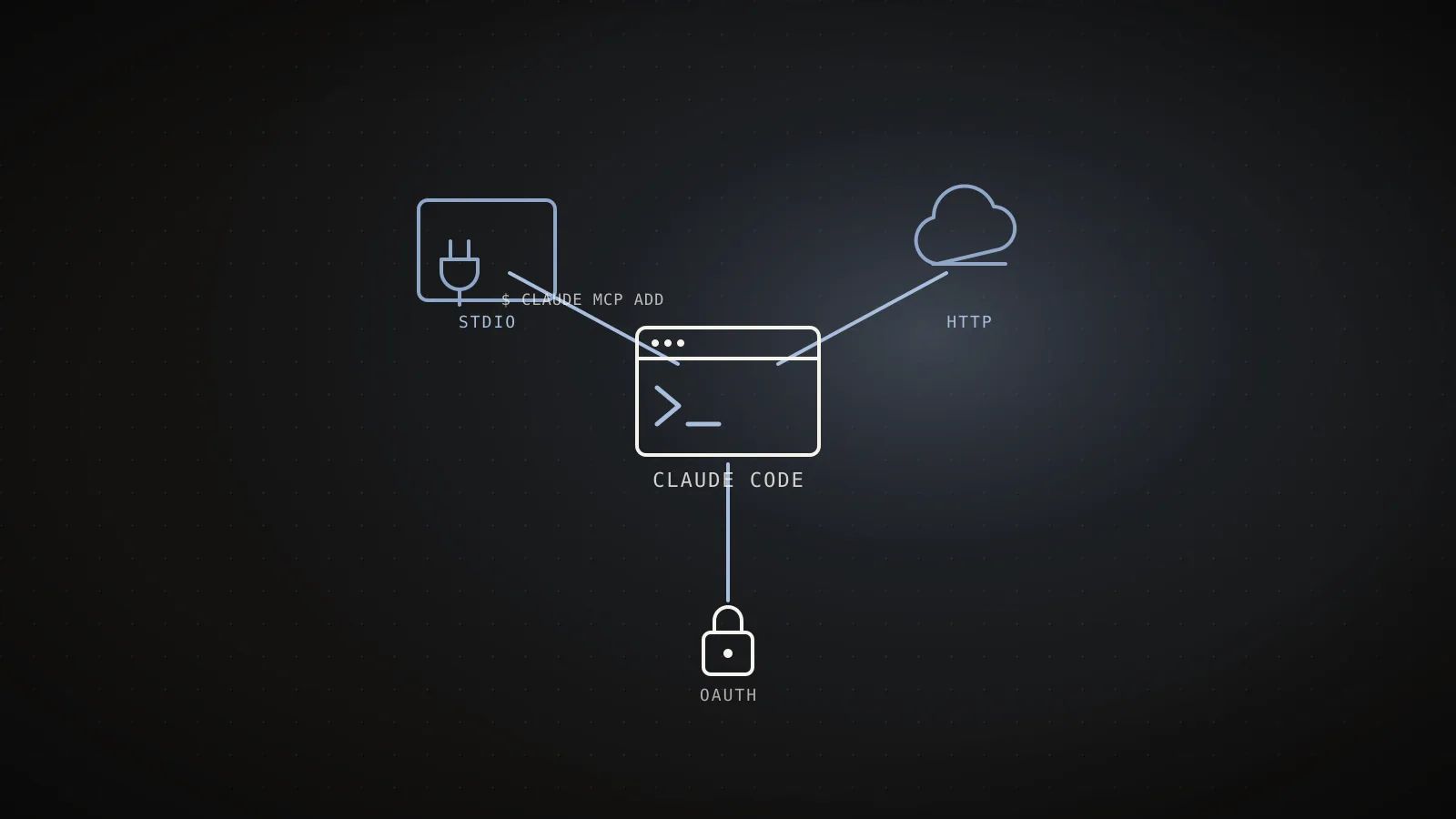
Made with DispatchSEO
On this page
Run claude mcp add --transport http sentry https://mcp.sentry.dev/mcp and Claude Code can read a real Sentry issue in the same conversation within a minute - swap the name and URL and the same command connects any other remote server, while claude mcp add <name> -- <command> covers one that runs locally. No config file to hand-write, no restart needed. The command is the easy part. What trips people up is everything attached to it: which scope keeps a server private to you versus shares it with your whole team, how to tell a real connection from a silently broken one, and why a server you added in Claude Desktop is nowhere to be found here.
TL;DR:
claude mcp add <name> -- <command>for a local (stdio) server,claude mcp add --transport http <name> <url>for a remote one - for example,claude mcp add --transport http sentry https://mcp.sentry.dev/mcp, or the same URL with/{org}/{project}appended to scope it to one project. Add-s projectto share it via a committed.mcp.json, or-s userto make it available in every project on your machine - the default,local, is private to you and this project only. Runclaude mcp listto confirm it actually connected, and/mcpinside a session to sign in if it needs OAuth.
What an MCP server actually adds
An MCP server is a bridge between Claude Code and one external tool - GitHub, a database, an error tracker, a design tool - that lets Claude call it directly instead of you copying data back and forth. Add the GitHub server and Claude can read a real issue and open a real PR in the same conversation; add a database server and it can run a query instead of you pasting a schema dump. This guide is entirely about the mechanics of connecting one: the command, the scope, and the failure modes. If you haven't picked which servers are worth the setup yet, the six I run daily on a shipped product is the place to start; come back here once you know the name.
The one command that connects any server
Every server, local or remote, goes through the same subcommand: claude mcp add. What changes is what comes after it. Here's the current usage straight from the CLI, re-run for this update on 2.1.268 - Sentry is the tool's own example for an HTTP server now, which tells you how common this exact setup is:
$ claude mcp add --help
Usage: claude mcp add [options] <name> <commandOrUrl> [args...]

Examples:
  # Add HTTP server:
  claude mcp add --transport http sentry https://mcp.sentry.dev/mcp

Options:
  -e, --env <env...>           Set environment variables (e.g. -e KEY=value)
  -H, --header <header...>     Set headers for HTTP/SSE servers (e.g. -H "X-Api-Key: abc123")
  -s, --scope <scope>          Configuration scope (local, user, or project) (default: "local")
  -t, --transport <transport>  Transport type (stdio, sse, http). Defaults to stdio if not specified.
For a local server - one that runs as a subprocess on your machine, like a CLI wrapped as an MCP server - the syntax is claude mcp add <name> -- <command> [args...]. The -- is not optional decoration: it's the marker that tells Claude Code's own flags (--scope, --env, --transport) stop here and everything after belongs to the server's command line. Skip it and Claude Code tries to parse the server's own flags as its own and fails in a confusing way:
claude mcp add playwright -- npx @playwright/mcp@latest
claude mcp add airtable -e AIRTABLE_API_KEY=YOUR_KEY -- npx -y airtable-mcp-server
For a remote server - one that lives on someone else's infrastructure and talks HTTP - drop the --transport http flag and pass a URL instead of a command:
claude mcp add --transport http sentry https://mcp.sentry.dev/mcp
claude mcp add --transport http github https://api.githubcopilot.com/mcp/ \
  --header "Authorization: Bearer YOUR_GITHUB_PAT"
Typing full commands by hand is fine for one server; past two or three it's easy to fat-finger a flag. The MCP config generator builds the exact commands for a shortlist of common servers, or a ready .mcp.json block if you'd rather paste a file - it's the same commands as above, just assembled for you.
Local, project, or user: picking a scope
Every claude mcp add writes to one of three scopes, set with -s (or --scope). This is also where a lot of blog posts on this topic go stale: Claude Code renamed two of the three scopes at some point, and the official docs now say so directly - "local" used to be called project, and user used to be called global. If a guide you're reading only mentions two scopes, it predates the rename.
Local
-s localLoads in
This project only, just for you
Stored in
~/.claude.json, under this project's path
Project
-s projectLoads in
This project, for anyone who clones it
Stored in
.mcp.json in the project root - commit it
User
-s userLoads in
Every project on this machine, just for you
Stored in
~/.claude.json, at the top level
| Scope | Flag | Shared with your team? |
|---|---|---|
| Local (default) | -s local | No - private to you, this project only |
| Project | -s project | Yes - via .mcp.json, committed to the repo |
| User | -s user | No - private to you, but loads in every project |
Reach for project scope when a server is part of the setup itself (a shared database, an internal API) and everyone on the repo should get it automatically after pulling. Reach for user scope for your own everyday tools, the ones you want connected no matter which project you're in. Leave it at the local default for anything experimental, or anything with credentials you don't want anywhere near version control.
Adding your first server, start to finish
Add to confirmed, four commands
claude mcp add sentry --transport http https://mcp.sentry.dev/mcpWrites the server to config (default scope: local)
claude mcp listHealth-checks every configured server
/mcpRun inside a session to sign in if a server needs OAuth
claude mcp get sentryPrints the server's live status, health-checked on the spot
Tested for this guide, 2026-08-04
Running claude mcp add demo-local -s local -- echo hello in a scratch project printed File modified: ~/.claude.json [project: /tmp/...], then claude mcp list reported ✘ Failed to connect - -32000: MCP error -32000: Connection closed, because echoisn't an MCP server - exactly the failure mode a server with a real bug also produces, which is why step 2 matters as much as step 1.
Walking through the Sentry example above end to end: claude mcp add --transport http sentry https://mcp.sentry.dev/mcp writes the entry and prints a confirmation line - that only means the config was saved, not that the server is reachable. Run claude mcp list next; it actually health-checks every server and prints a status next to each. Sentry authenticates with OAuth rather than an API key, so the first check shows it needs a sign-in - open a session and run /mcp, pick Sentry, and follow the browser prompt. Run claude mcp list (or /mcp again) once more and the status flips to connected. That two-step loop, add then verify, is the same for every server; only the OAuth step is conditional on the server needing it.
Scoping the Sentry connection to one project
The URL in the command above (https://mcp.sentry.dev/mcp) connects at the org level - every tool call has to figure out which project you mean before it can do anything. Sentry's own docs recommend a scoped URL instead: append the org and project slugs and the server drops the extra discovery tools entirely, since there's nothing left to disambiguate.
claude mcp add --transport http sentry https://mcp.sentry.dev/mcp/your-org-slug/your-project-slug
Find both slugs in the project's Sentry URL (sentry.io/organizations/your-org-slug/projects/your-project-slug/) rather than guessing at them. Scoping only hides the discovery tools you no longer need to disambiguate an org or project; the underlying capabilities are the same set either way, which Sentry describes as covering error search, performance analysis, issue triage, docs lookup, and project management:
What Claude can actually do with Sentry connected
Search & inspect errors
Pull an issue's full stack trace, breadcrumbs, and related events by ID or query
Analyze performance
Read distributed traces and spans to find where a request actually slows down
Triage & root-cause
Rank open issues by impact, then hand the worst one to Seer for a root-cause pass
Read Sentry's docs
Look up SDK setup and configuration without leaving the session
Manage projects
List orgs, projects, and teams tied to the token that authenticated the connection
Source: mcp.sentry.dev and getsentry/sentry-mcp. The natural-language search tools and Seer's root-cause pass need an LLM provider key configured on the server side - without one, every other tool here still works.
One thing the current page-1 results don't spell out: the natural-language search tools (search_events, search_issues) and Seer's root-cause pass need an LLM provider key configured on the server side. Skip that on a self-hosted Sentry instance and those specific tools drop out of the list, while everything else keeps working. The dedicated walkthrough for this server covers the rest of its tool catalog and five starter prompts mapped to their exact tool names, if you want to go deeper than getting it connected.
Skipping the manual setup with the official plugin
claude mcp add is the general-purpose path for any server. Sentry also ships two Claude Code plugins that bundle the same connection with extra skills, worth knowing about before you type the command above by hand. From inside a session:
/plugins install sentry@claude-plugins-official
installs Sentry's full plugin: the hosted MCP server plus SDK setup wizards, debugging workflows, and code-review skills. Most of those stay behind router skills until you actually ask for them, which is how the plugin avoids dumping all of it into context at once. The lighter option lives in the MCP server's own repo:
claude plugin marketplace add getsentry/sentry-mcp
claude plugin install sentry-mcp@sentry-mcp
This installs just a sentry-mcp subagent that Claude delegates to automatically whenever you ask about Sentry errors, issues, or traces, minus the wider skill library the other plugin carries. Either route still authenticates over OAuth the same way a plain mcp add does. Reach for the full plugin if you want Claude to already know Sentry's setup and review workflows; reach for mcp add if the connection is all you need.
Signing in when a server needs OAuth
Claude Code flags a remote server as needing authentication the moment it gets back a 401 or 403. From inside a session, /mcp walks you through it: pick the server, a browser tab opens, sign in, done - the token is stored and refreshed automatically after that. From a plain shell, without opening a session at all, claude mcp login <name> runs the same flow. Over SSH or anywhere without a local browser, add --no-browser and it prints a URL to open on your own machine instead, then waits for you to paste the redirect link back:
claude mcp login sentry --no-browser
To sign out of a server (rotating a credential, or just clearing a stale session), claude mcp logout <name> clears the stored token without touching the rest of the config.
Where Claude Code writes the config
I tested this rather than take the docs' word for it: from a scratch project, claude mcp add demo-local -s local -- echo hello printed File modified: ~/.claude.json [project: /tmp/mcp-test-scratch], confirming local scope writes into your home directory, keyed by the project's own path, not a file inside the project itself:
{
  "projects": {
    "/tmp/mcp-test-scratch": {
      "mcpServers": {
        "demo-local": { "command": "echo", "args": ["hello"] }
      }
    }
  }
}
-s user writes to the same ~/.claude.json file, just at the top level instead of nested under a project path, which is why it follows you everywhere. -s project is the only scope that touches a file inside your repo at all - .mcp.json at the root, in the same shape minus the projects wrapper, which is exactly what makes it committable.
Fixing the errors you'll actually hit
What claude mcp list is actually telling you
✘ Failed to connectThe command or URL doesn't speak MCP, or the process crashed on launch
Run the stdio command standalone first, or the HTTP URL in a browser, to confirm it responds
! Needs authenticationThe remote server returned 401/403 and is waiting on an OAuth sign-in
Run /mcp in a session, or claude mcp login <name> from the shell
⏸ Pending approvalA project-scoped server from .mcp.json hasn't been approved in this checkout yet
Run claude interactively once and accept the approval prompt
already exists in local configA server with that name is already added at that scope
Pick a different name, or claude mcp remove <name> first
Status strings from code.claude.com's MCP reference, matched against a live `claude mcp list` run on Claude Code 2.1.221.
The most common of the four, by a wide margin, is the first: a stdio server that fails to connect because the command doesn't actually speak MCP, or the package needs a flag you didn't pass. Running the exact same command outside Claude Code, in a plain terminal, is the fastest way to tell "the server crashed" from "the server just needs a moment" - a real MCP server prints startup logs to stderr and then goes quiet waiting for input; a broken command exits immediately. The longer troubleshooting path covers the cases that aren't a bad command at all: OAuth token expiry, enterprise policy blocks, and the VS Code extension showing a server as disconnected while the CLI connects fine.
Claude Desktop's config is not this one
Claude Desktop and Claude Code are two different applications with two entirely separate MCP configurations - adding a server in one does not make it available in the other, even though both use the same underlying protocol. The rest of what's shared (and what isn't) between the two goes deeper, but for MCP specifically: if you already have servers set up in Claude Desktop, claude mcp add-from-claude-desktop copies them over in one shot, letting you pick which to import. It only works on macOS and Windows Subsystem for Linux, and it's a one-time copy - adding a server in Desktop afterward doesn't retroactively appear in Claude Code, and vice versa.
When not to add a server
Every connected server sends its full tool list into Claude Code's context on every single turn, whether you call it that turn or not. The question worth asking before adding one is not whether it would be useful, but whether you'll use it often enough to justify paying for it on every message. The full breakdown of what that actually costs, and how to audit it, is worth reading before you connect a fourth or fifth server, not after. A handful of names are also off-limits outright - workspace, computer-use, and a few others are reserved for Claude Code's own built-in servers, and claude mcp add rejects them with an error if you try to reuse one.
FAQ
What's the exact command to add an MCP server to Claude Code?
claude mcp add <name> -- <command> [args] for a local server that runs as a subprocess, or claude mcp add --transport http <name> <url> for a remote one. The -- before the command is required for stdio servers: it's what stops Claude Code from trying to parse the server's own flags as its own.
What's the difference between local, project, and user scope?
Local (the default) is private to you and loads only in the project you added it from, stored in ~/.claude.json. Project scope writes to a .mcp.json file in the repo root that you commit, so it loads for anyone who clones the project. User scope also lives in ~/.claude.json but loads in every project on your machine, still private to you. Pick the scope with -s local, -s project, or -s user.
How do I add Sentry's MCP server to Claude Code specifically?
claude mcp add --transport http sentry https://mcp.sentry.dev/mcp connects at the org level; append your org and project slugs (https://mcp.sentry.dev/mcp/your-org-slug/your-project-slug) to scope it to one project and drop the extra discovery tools. Either way it authenticates over OAuth on first use. Sentry also ships two plugins that bundle the same server with extra skills: /plugins install sentry@claude-plugins-official for the full SDK-setup-and-debugging library, or claude plugin marketplace add getsentry/sentry-mcp plus claude plugin install sentry-mcp@sentry-mcp for just an auto-delegating subagent.
How do I check that an MCP server actually connected?
Run claude mcp list - it health-checks every configured server and prints a status next to each one: a check mark for connected, an exclamation point if it needs authentication, or an X if it failed to connect. claude mcp get <name> gives the same detail for one server, and /mcp inside a running session shows the same list plus the sign-in flow for anything that needs OAuth.
Why does Claude Code say a server is pending approval?
That status is specific to project-scoped servers defined in a .mcp.json file you didn't add yourself, usually because you cloned a repo that has one committed. Claude Code won't auto-trust a server that arrived with the code, so it holds it as pending until you run claude interactively in that project and approve it once.
Is a Claude Desktop MCP config the same as Claude Code's?
No - they're two separate apps with two separate config files, and adding a server in one doesn't add it in the other. If you already set servers up in Claude Desktop, claude mcp add-from-claude-desktop imports them into Claude Code, but that command only works on macOS and WSL, and it's a one-time copy, not a synced config.
One line in, one line to check
claude mcp add is genuinely one line - the scope flag, the OAuth step, and reading claude mcp list correctly are the entire rest of what this guide covers, and none of it takes longer than the command itself. Getting the picks right, not just the syntax, is the harder half of MCP setup, and it's the exact gap ClockedCode closes with a vetted server list and the tuned config that ships alongside it, installed in one paste instead of assembled server by server.